
EasyLMS Exam Setup Guide
Last updated: January 8, 2026
This guide will walk you through the essential steps and considerations for setting up and managing exams within your events.
1. Initial Setup and Prerequisites
Before you can integrate and use EasyLMS exams, ensure the following foundational settings are in place:
Required Settings:
- Enable EasyLMS Feature and configure apikey: The EasyLMS feature must be toggled on in your account settings and an EasyLMS apikey must be configured.
- Toggle New Event Site: Ensure that the new event site functionality is toggled on for your account.
- Registration Requirements: To ensure exams function correctly for your participants, it is crucial that registration is enabled for your event, requiring the participant’s first name, last name, and email address.
Why registration is necessary: EasyLMS requires these details to sign users into an exam session and track their progress and results.
Action: Always ensure these registration fields are mandatory for events featuring exams.
2. Testing Exams: Important Considerations
Due to the registration requirement mentioned above, it is not possible to use a preview link to test exams.
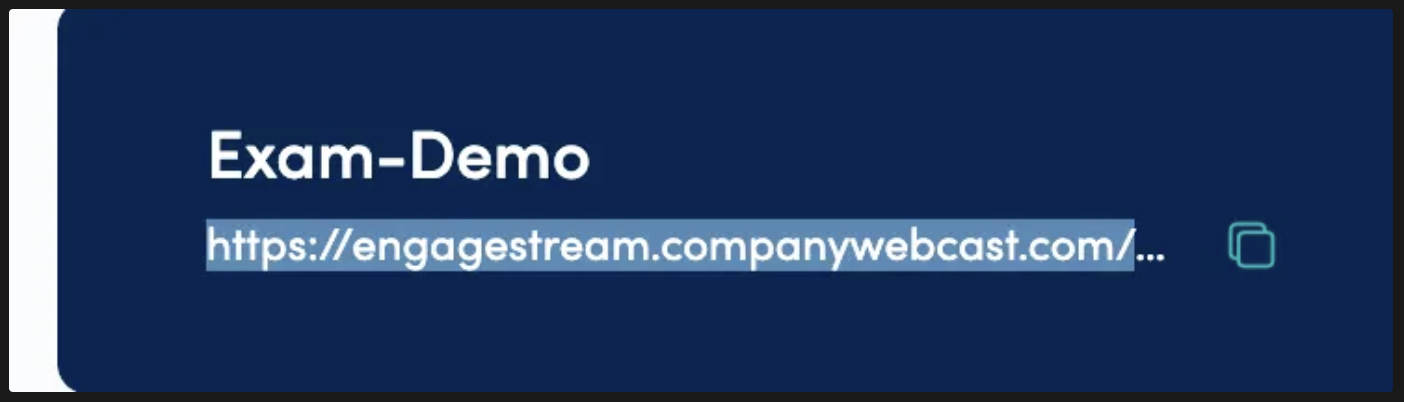
How to test: Always use the real event link for testing exam functionality. This ensures the necessary registration data is passed to EasyLMS.
3. Setting Up and Managing Exams
Once the initial setup is complete, exams are integrated into your event through the External Services tab.
Making an Exam Available
You can configure when an exam becomes available to participants. For example, an exam can be set to appear after a participant has watched a specific duration of your video-on-demand (VOD) content (e.g., “after watching 1 minute of VOD”).
Adding More Exams
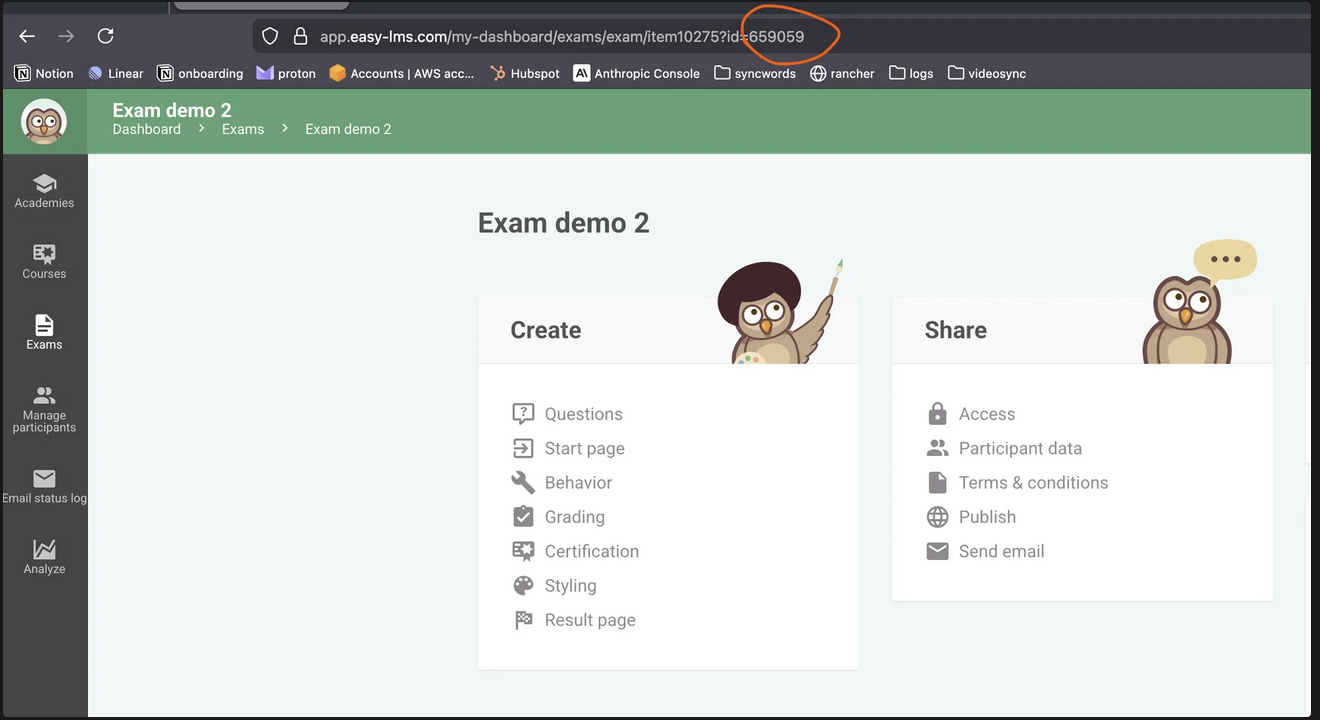
-
Navigate to your EasyLMS dashboard.
-
Locate and copy the Exam ID for the desired exam.
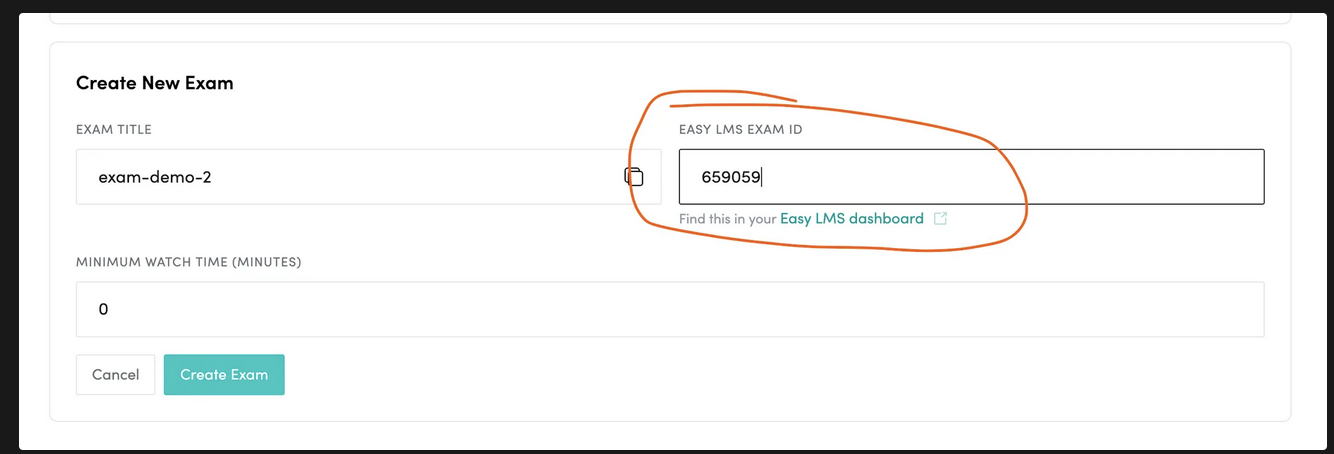
- Paste this Exam ID into the exam configuration settings within the External Services tab of your event platform.
Example Scenario:
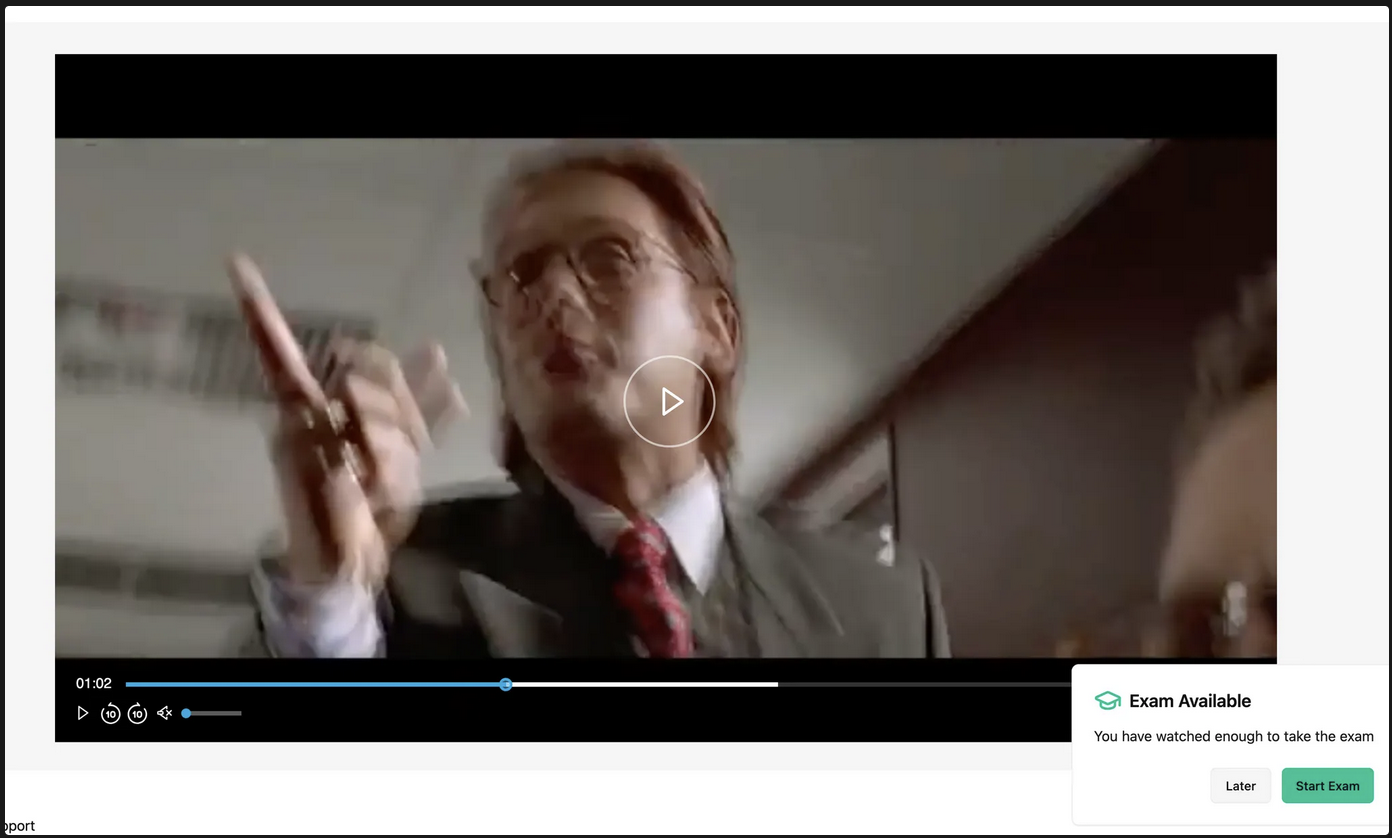
With typical settings, an exam titled “exam demo” might become available to participants after they have watched at least 1 minute of your VOD content. You have full flexibility to adjust these availability settings or add multiple exams as needed from the External Services tab.
Setting up Easy LMS Webhook
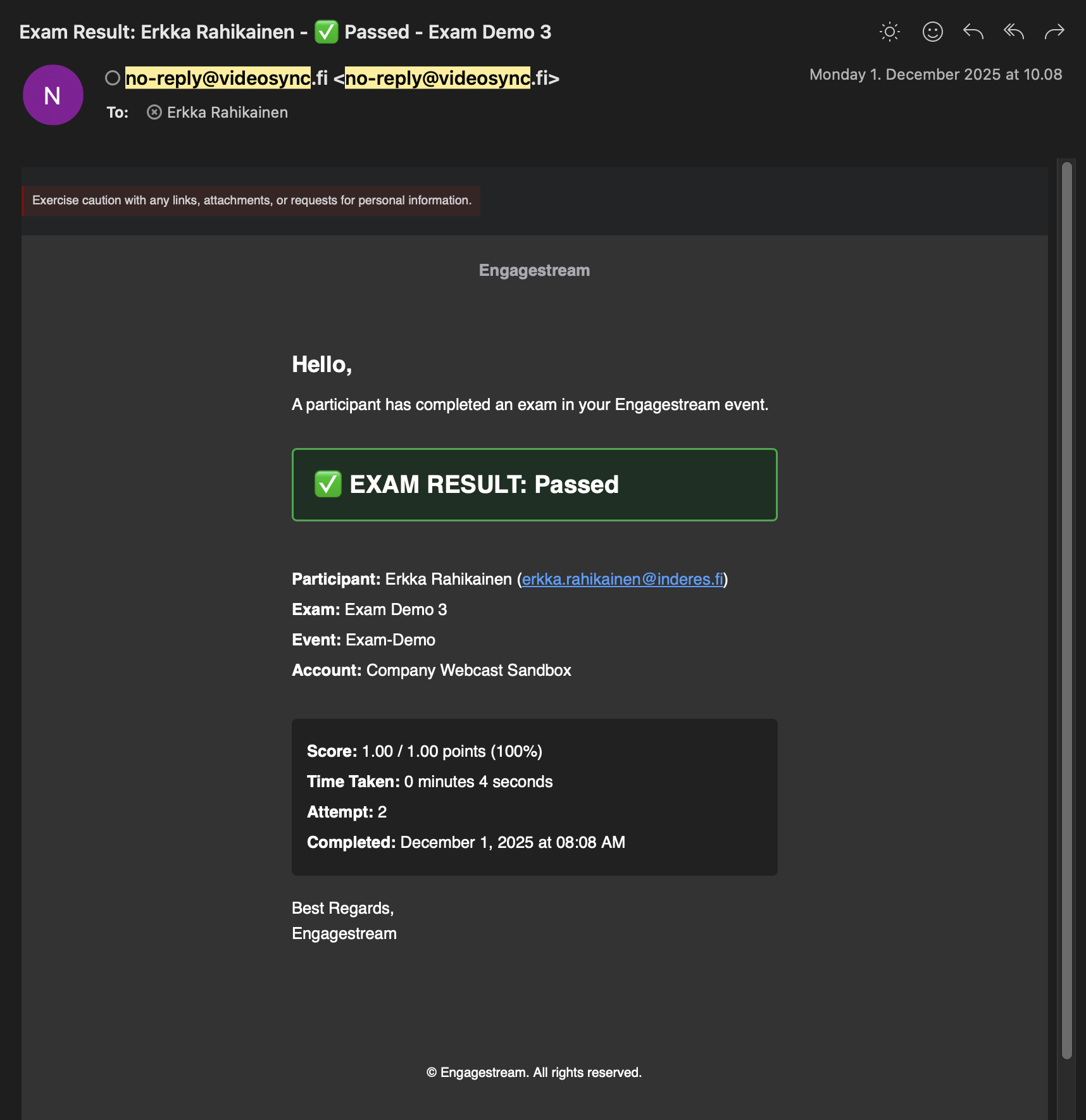
An Easy LMS Webhook allows you to receive email notifications about completed exams and also view exam completions in the Analytics Dashboard. Webhooks are a completely optional feature, you can skip this if you do not need email notifications and exam statistics in Analytics Dashboard.
Setup
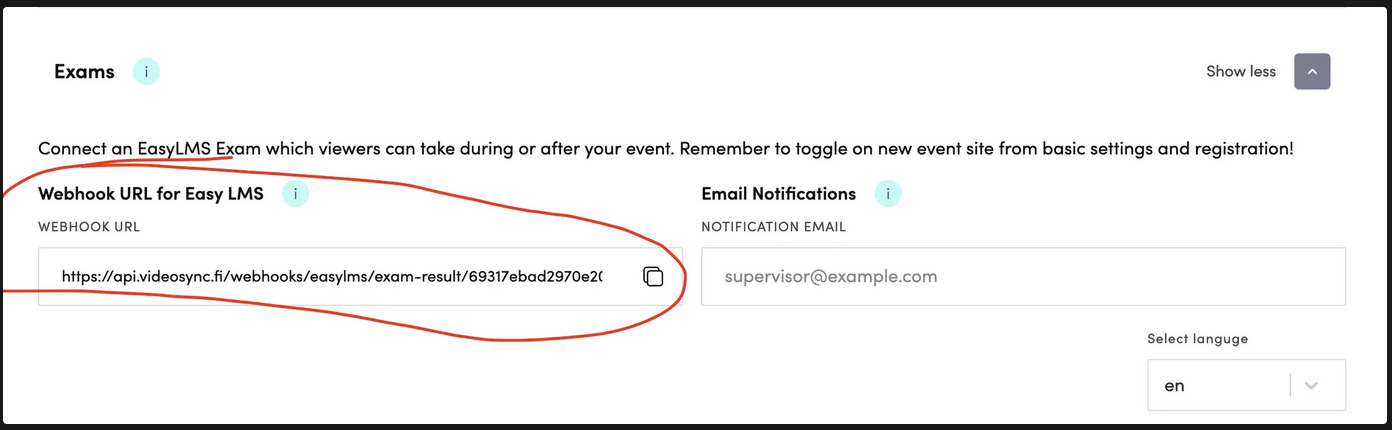
- Copy the webhook URL in your event. The Webhook URL is event specific. Add it in Easy LMS to each exam you have in the event.
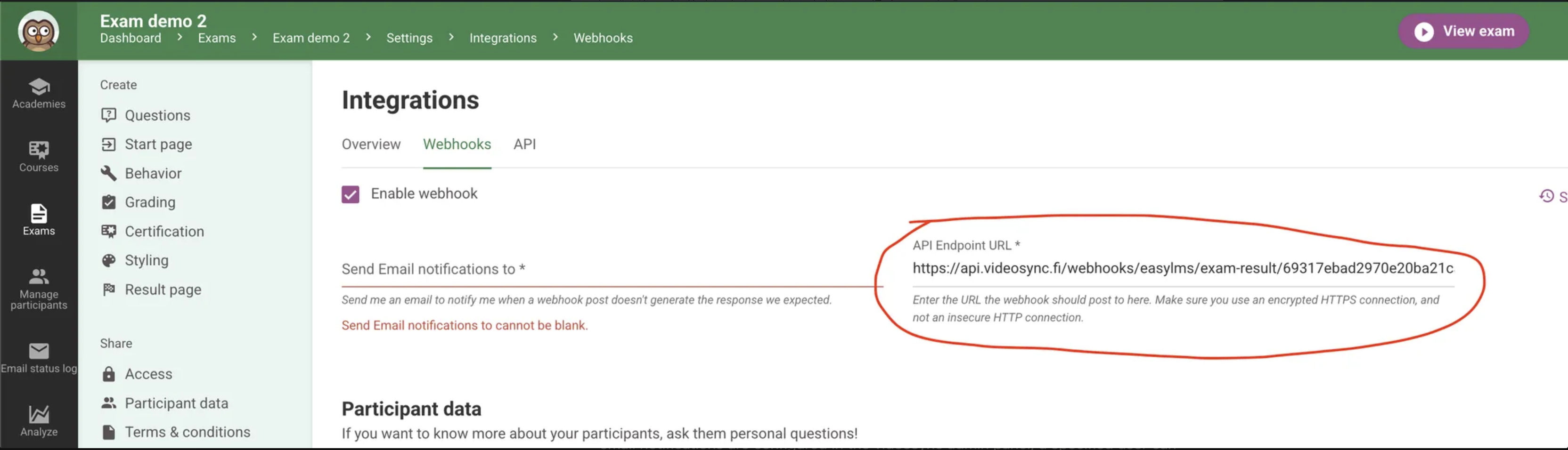
- Paste the url in Easy LMS console. Add your own or another admin’s email address to the empty email field. You will only receive emails from Easy LMS if there is an error. Scroll to the bottom of the page and press save button.
HOX: The webhook MUST be added to each exam separately.
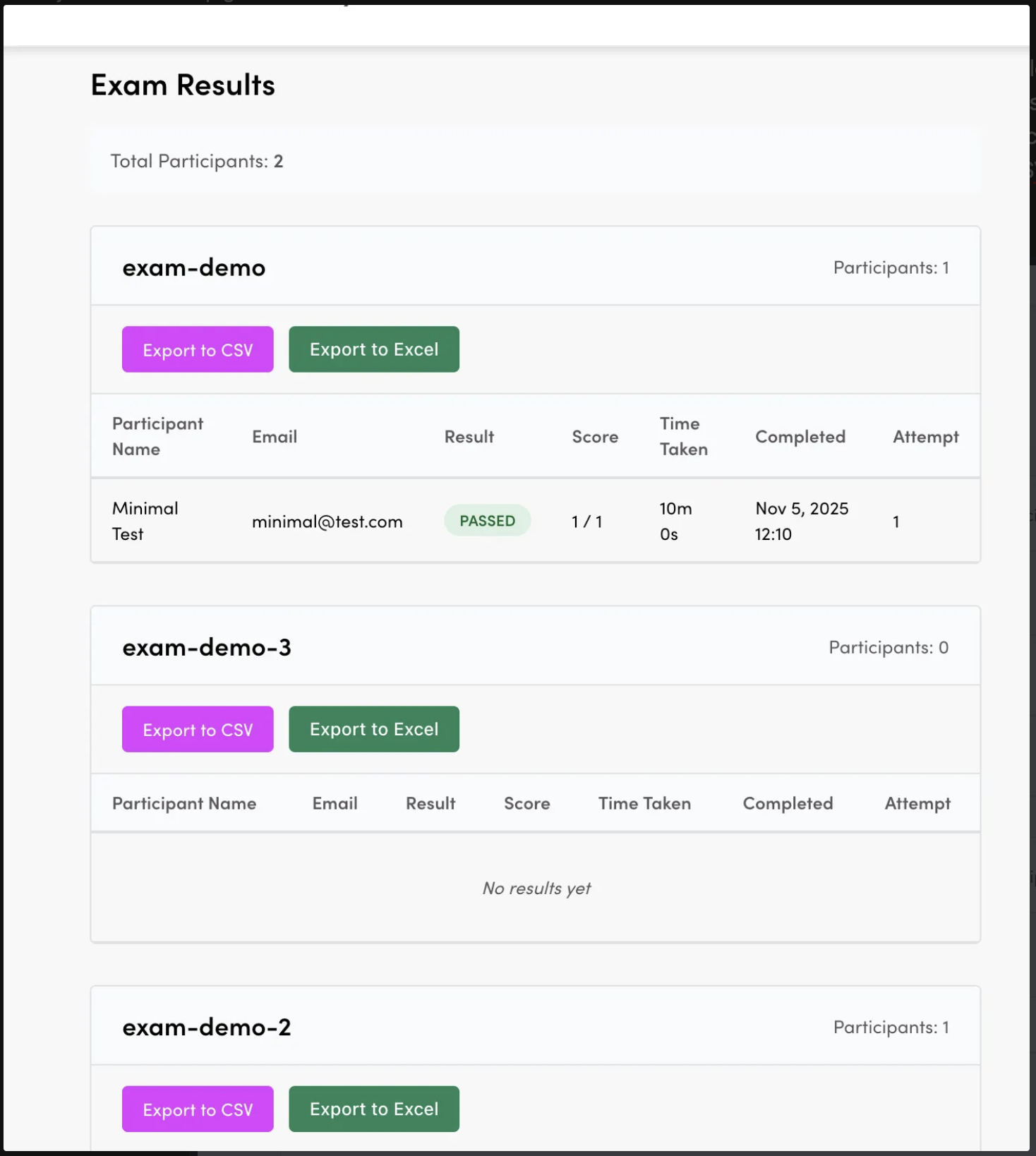
- When users complete exams, the webhook will now receive data about completions. If email notifications are configured in the videosync admin panel, a specified user can receive emails about exam completions. Exam completion data can also be accessed in the Analytics Dashboard. The dashboard supports exporting exam data to CSV and Excel.
FAQ
Are all browsers supported?
No. Browsers with 3rd party cookies blocked such as Safari and Chrome Incognito mode prevent the exam embed from working correctly. Recommended workaround is to use Chrome/Firefox/Edge.
Can I use preview links to test exams?
No. Due to registration requirements, you must use the real event link for testing exam functionality. Preview links do not pass the necessary registration data to EasyLMS.
Do I need to add webhooks for each exam separately?
Yes. The webhook must be configured for each individual exam in your Easy LMS console. The webhook URL is event-specific.
What data does the webhook send?
The webhook sends exam completion data including participant information and exam results. This data is displayed in the Analytics Dashboard and can trigger email notifications if configured.
Tips & Best Practices
Testing:
- Test exams using the real event link (not preview links) before your live event
- Verify the Easy LMS Exam ID is correct
- Check that notification texts display correctly in all languages
- Ensure the exam loads properly in the iframe
Webhook Configuration:
- Remember to configure webhooks for each exam separately
- Test webhook functionality by completing a test exam
- Verify email notifications are being sent correctly
- Check that completion data appears in Analytics Dashboard
Troubleshooting
”Requirements not met” Warning
If you see this warning in the Exams section, check:
- New event site enabled - Contact support if not enabled
- Registration enabled - Go to Event Admin → Basic Settings → Enable registration
- Easy LMS API key configured - Contact Videosync support to configure your account
Exam Not Appearing for Viewers
If viewers don’t see the exam:
- Check exam is enabled - Toggle must be in the “on” position
- Verify watch time - Viewer must meet the minimum watch time requirement
- Confirm registration - Viewer must be registered for the event
- Check browser compatibility - Safari and Chrome Incognito mode may not work due to 3rd party cookie restrictions
Webhook Not Receiving Data
If the webhook is not receiving exam completion data:
- Verify webhook URL - Ensure you copied the correct event-specific URL
- Check each exam - Remember that the webhook must be configured for each exam separately
- Test with a completion - Complete a test exam to trigger the webhook
- Review Easy LMS settings - Verify the webhook is saved correctly in Easy LMS console
Unable to Configure API Key
The Easy LMS API key is configured at the account level by system administrators. If you need API key configuration:
- Contact Videosync support
- Provide your Easy LMS account details
- Support will configure the API key for your account
Related Features
- Analytics Dashboard - Track exam completions and export data
- Registration - Required for exam functionality to work
- Event Site - New event site must be enabled for exams
Can't find what you're looking for?
Our AI assistant is here to help you find the information you need.